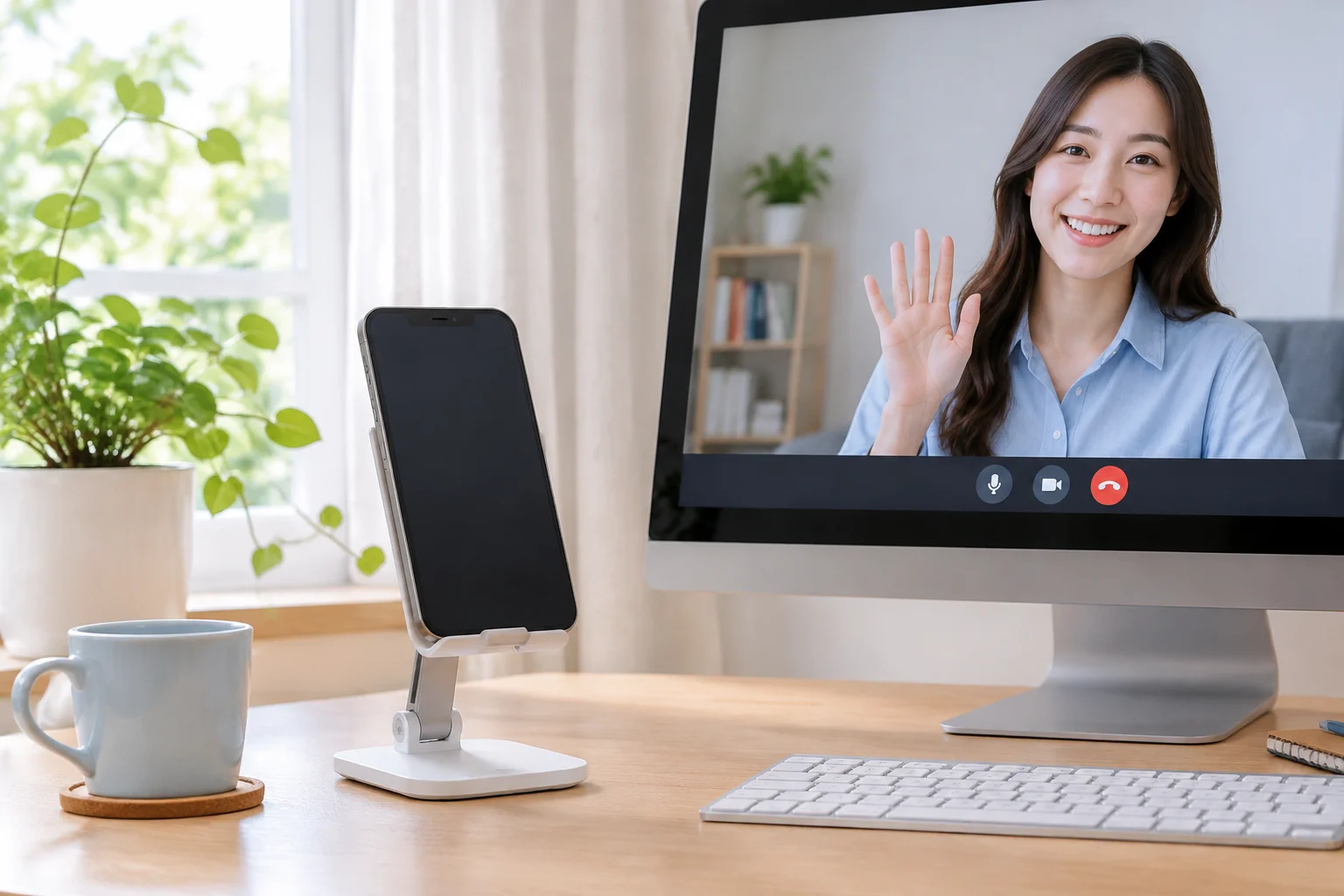
Mobile Source
Convert a Handset into a Webcam
An overview of using a mobile phone as a camera source for PC video calls, streams, and recordings.
Discover ModuleConvert ordinary handheld gadgets and cameras into specialized virtual video feeds for streaming, conferencing, and desktop recording.
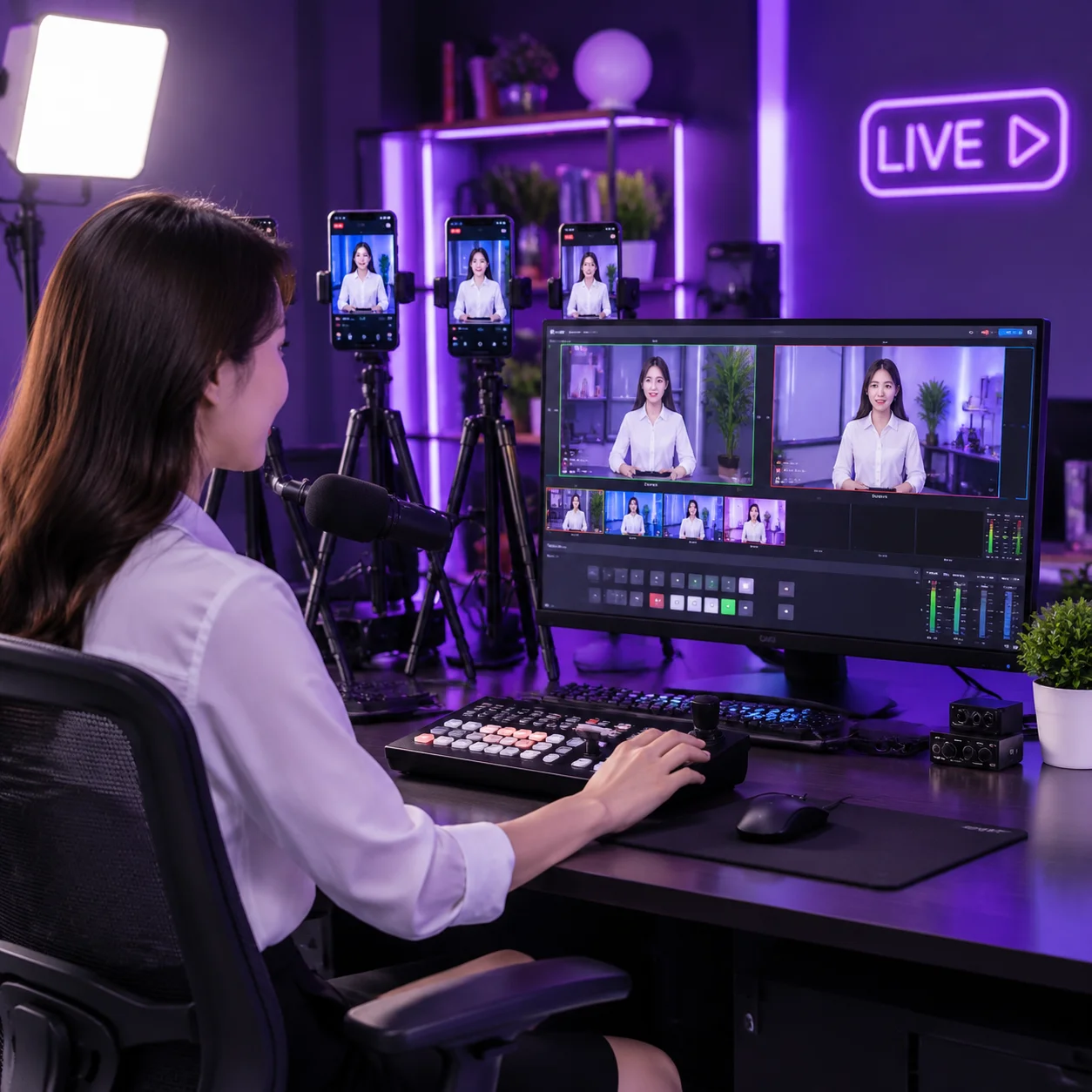
Vidora is specialized Windows PC application designed to turn ordinary handheld hardware—mobile phones, tablets, and specialized USB or HDMI video capture gadgets—into dependable camera feeds for your computer.
Rather than depending on low-grade notebook webcams or convoluted capture cards, Vidora pipes mobile sensors instantly to Windows video drivers over high-bandwidth USB or local Wi-Fi. Every linked feed appears immediately in conferencing platforms, streaming encoders, and video capture application as a standard virtual webcam source.
Low latency transmission with hardware acceleration.
Blends seamlessly with contemporary Windows video application.
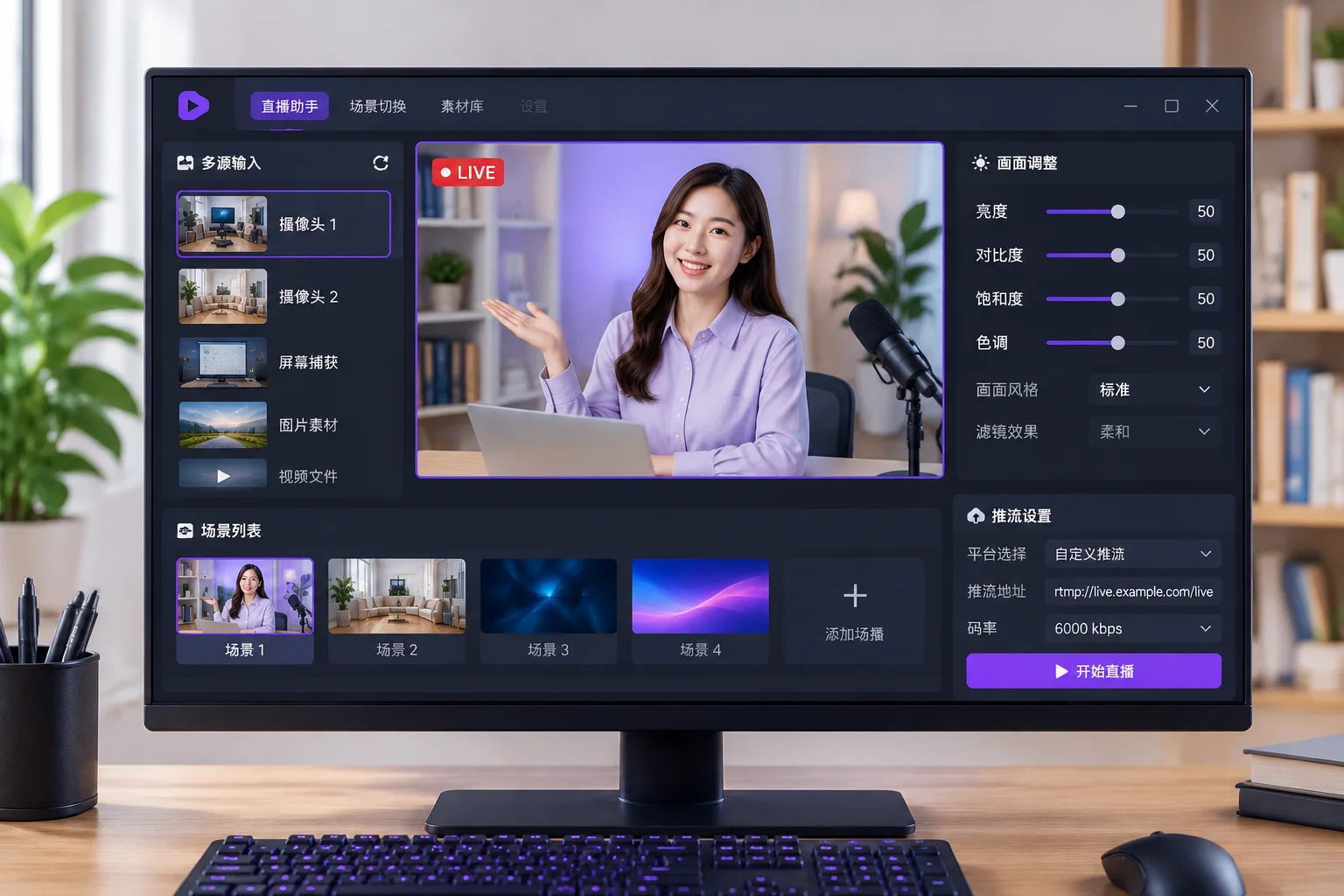
An overview of using a mobile phone as a camera source for PC video calls, streams, and recordings.
Discover Module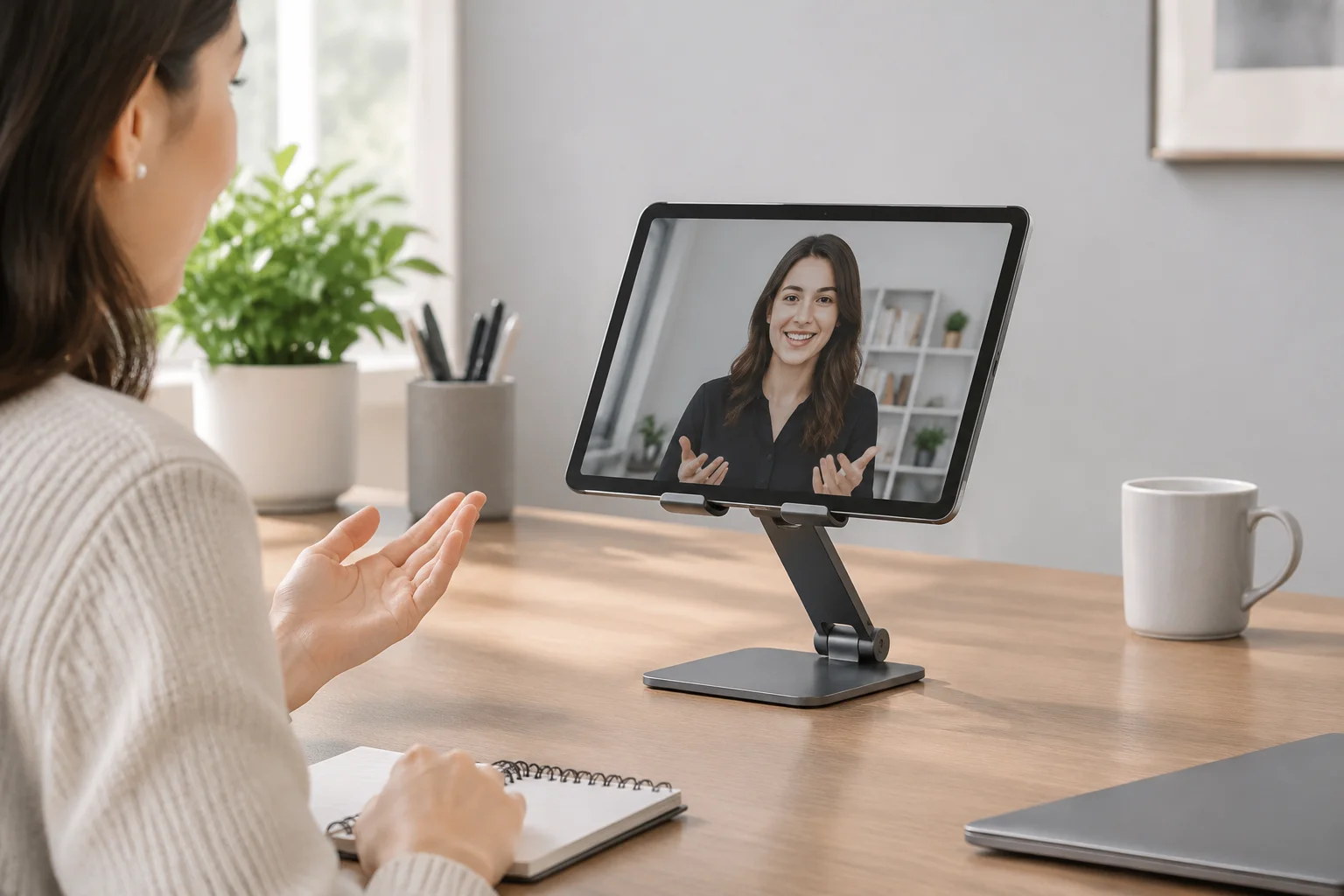
An overview of using a tablet as a camera source in a PC video configuration.
Discover Module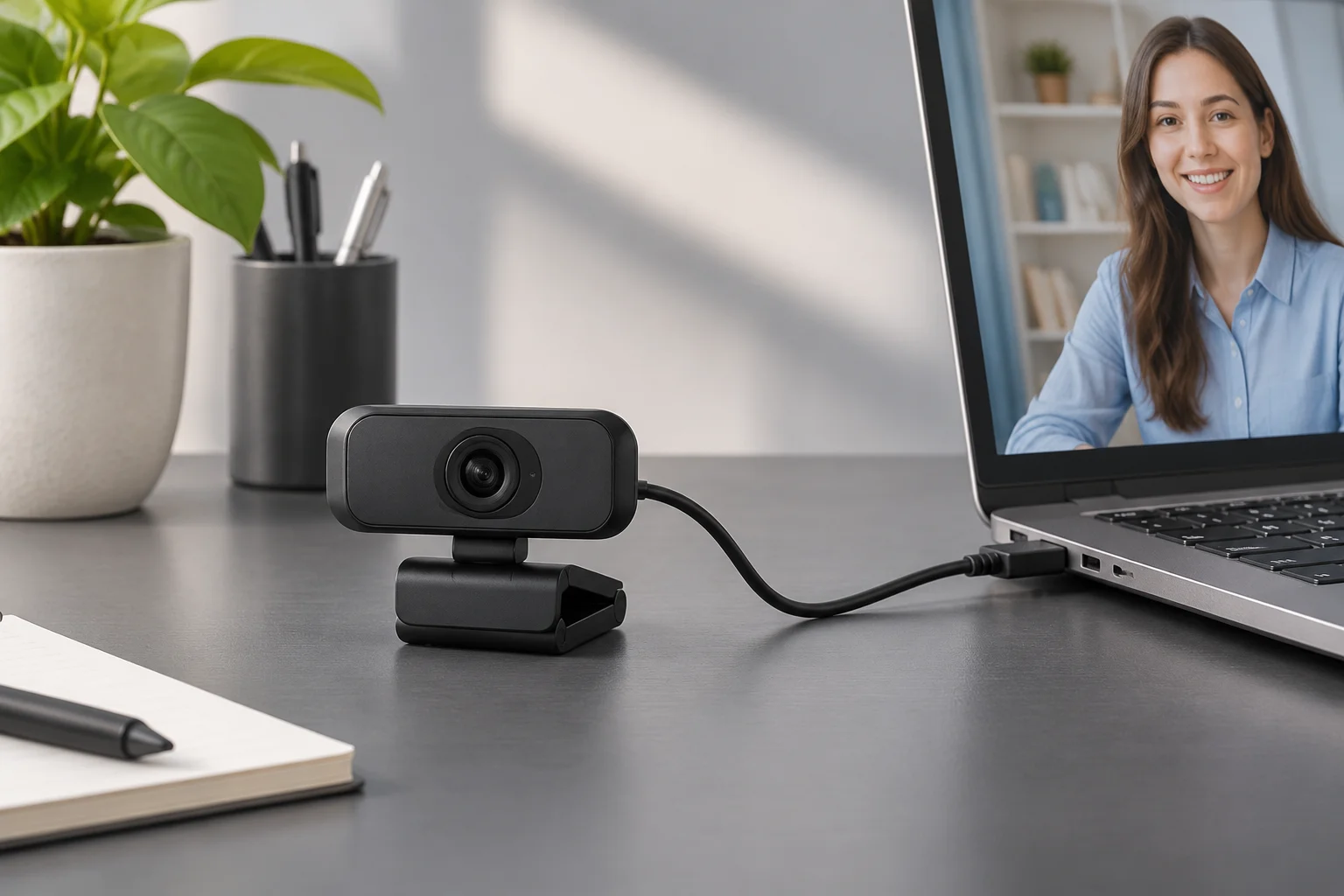
A hands-on introduction to linking a standard USB camera to a PC pipeline.
Discover Module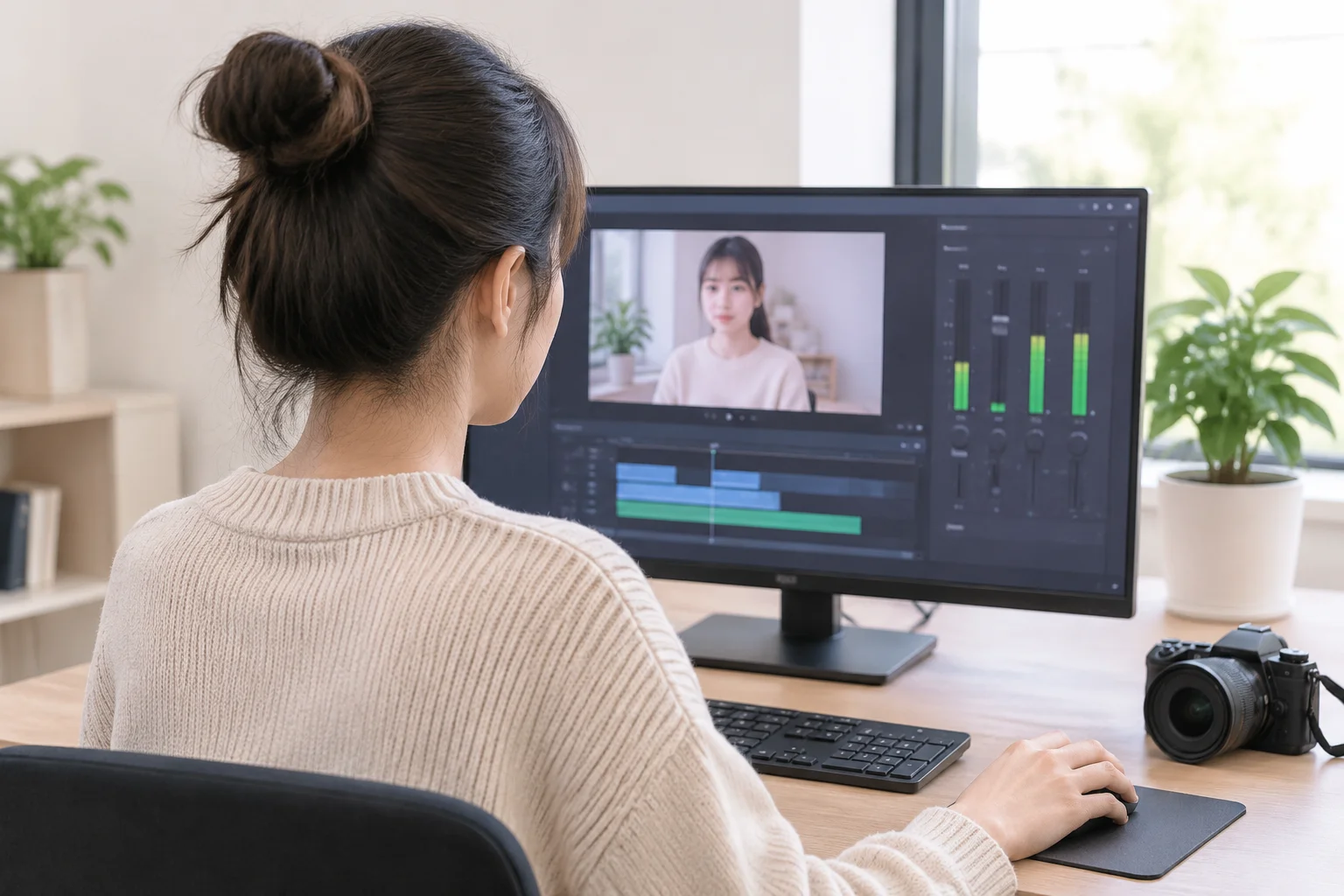
Guidance on preparing picture and sound options for a clean, comfortable video configuration.
Discover Module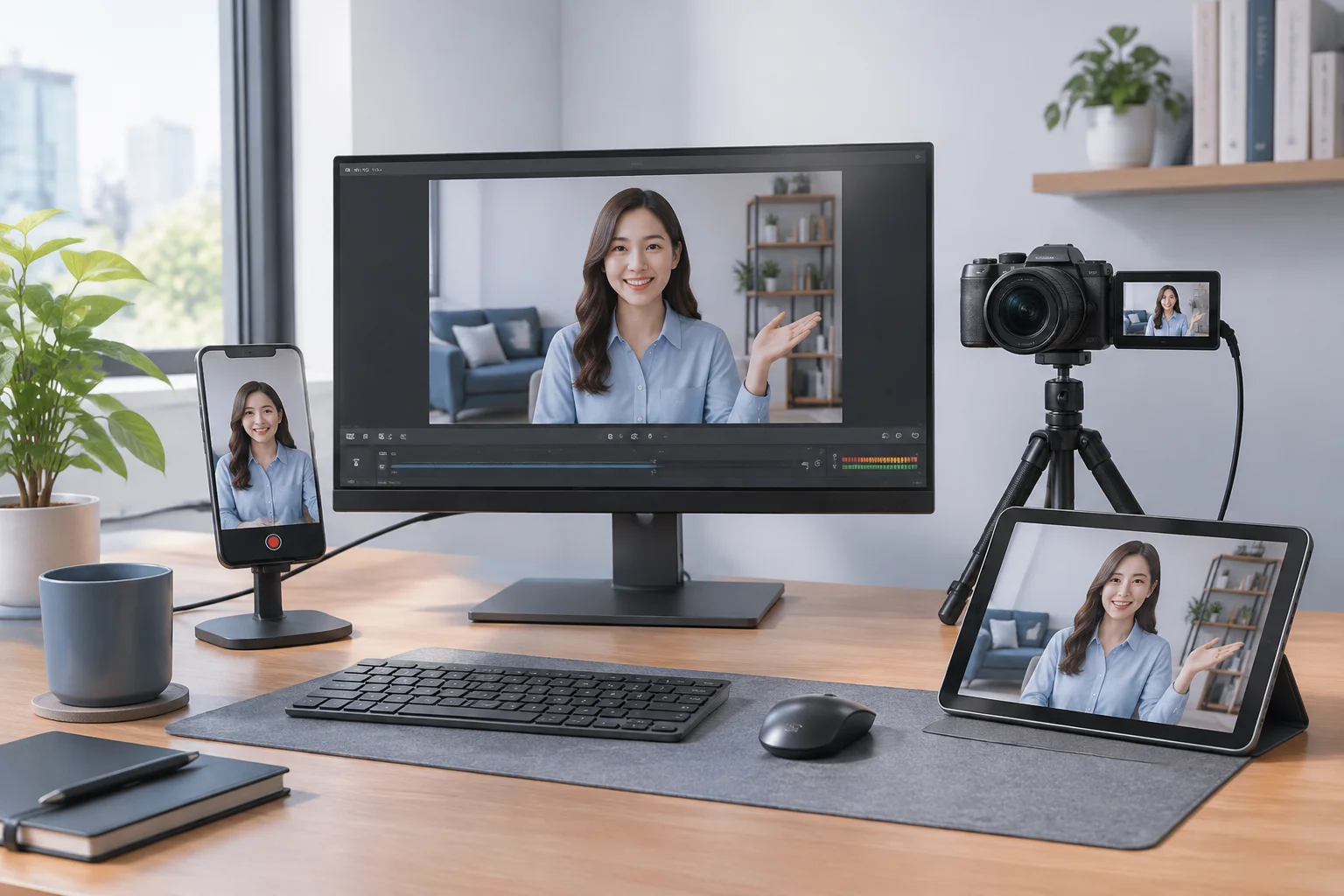
An introduction to arranging multiple camera sources into a considered scene.
Discover Module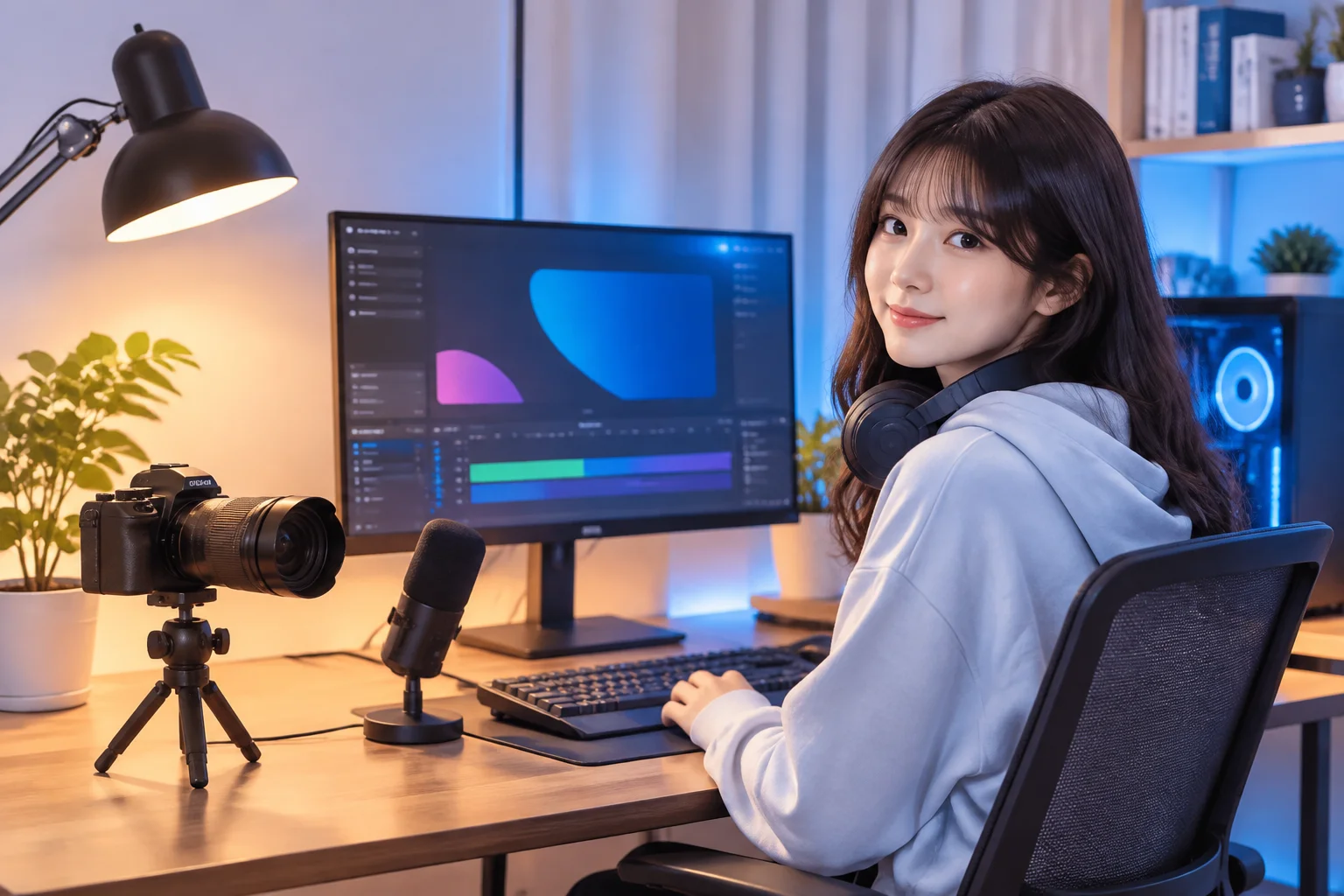
An overview of preparing one configuration for streaming and recording.
Discover ModuleIntegrating premium camera hardware into your ordinary computer configuration requires three straightforward, repeatable steps.
Attach your mobile handset, tablet, or UVC camera to your PC using a high-speed USB cable or pair over local Wi-Fi. The application detects linked hardware instantly without driver installation delays.
Open your preferred desktop application—such as video conferencing application, OBS Studio, or digital recorders. Pick "Vidora Virtual Camera" from the standard gadget input dropdown.
Fine-tune exposure, color balance, crop angles, or multi-angle switches inside the Vidora host panel. Once satisfied, initiate your conference, live stream, or master video recording immediately.