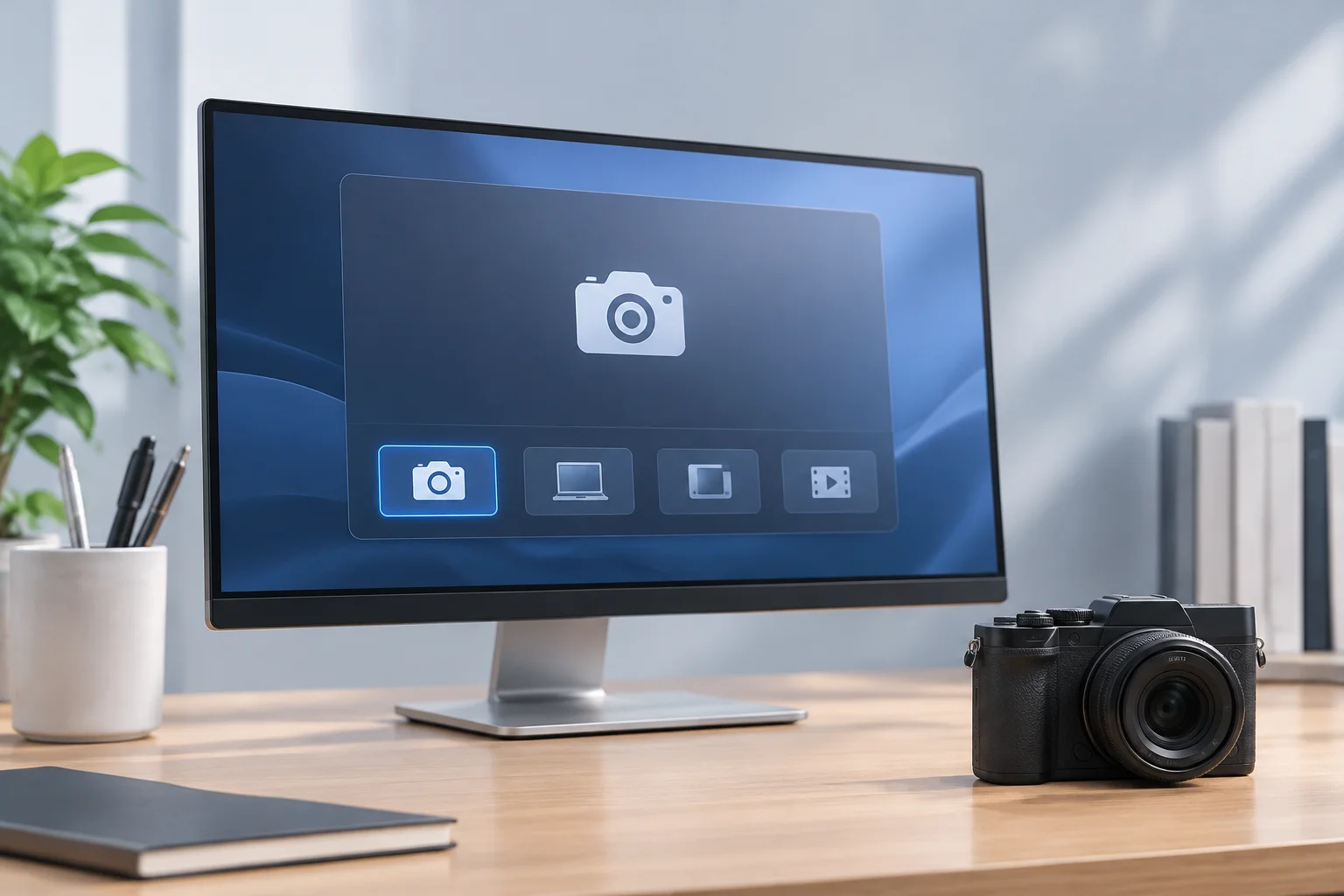
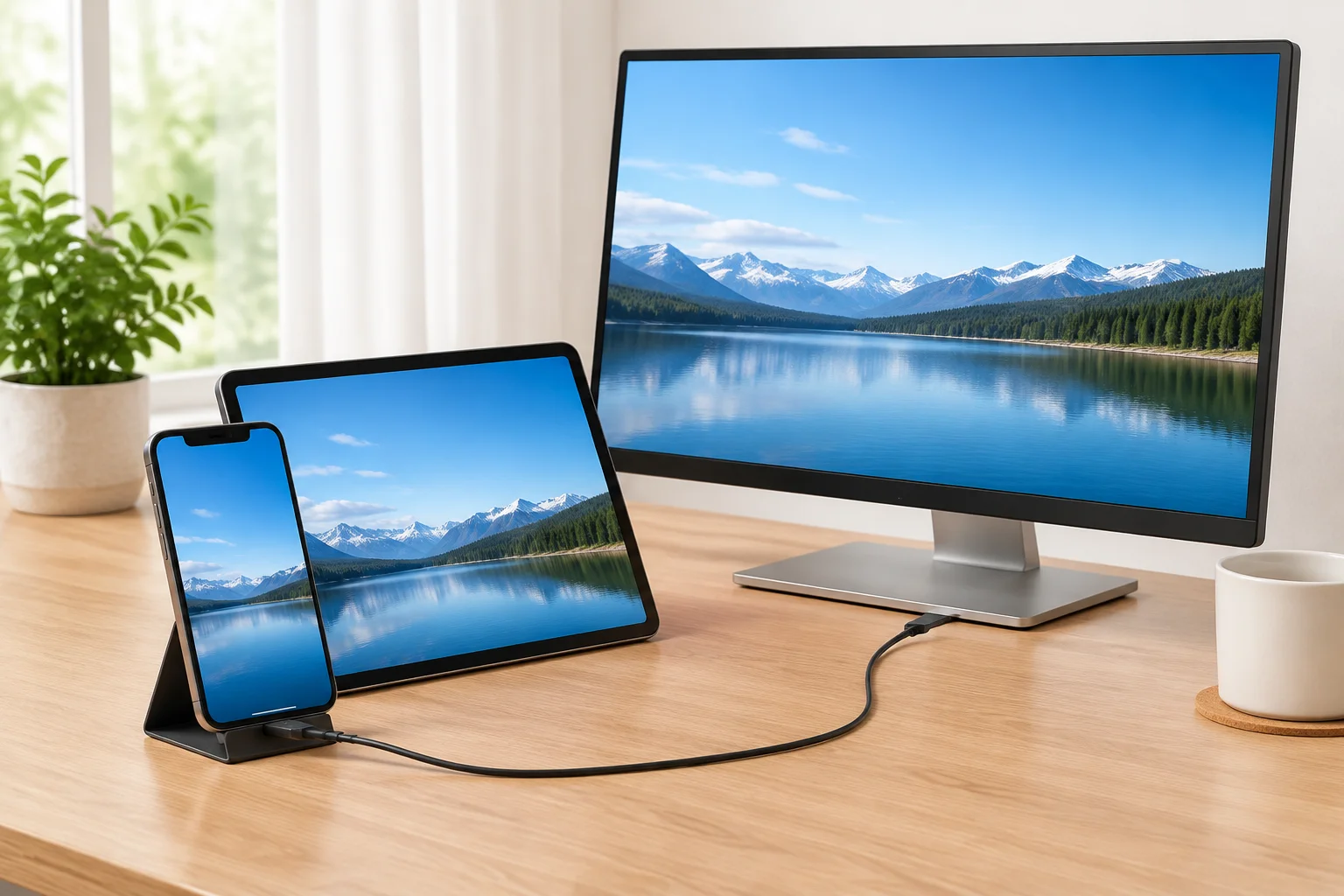
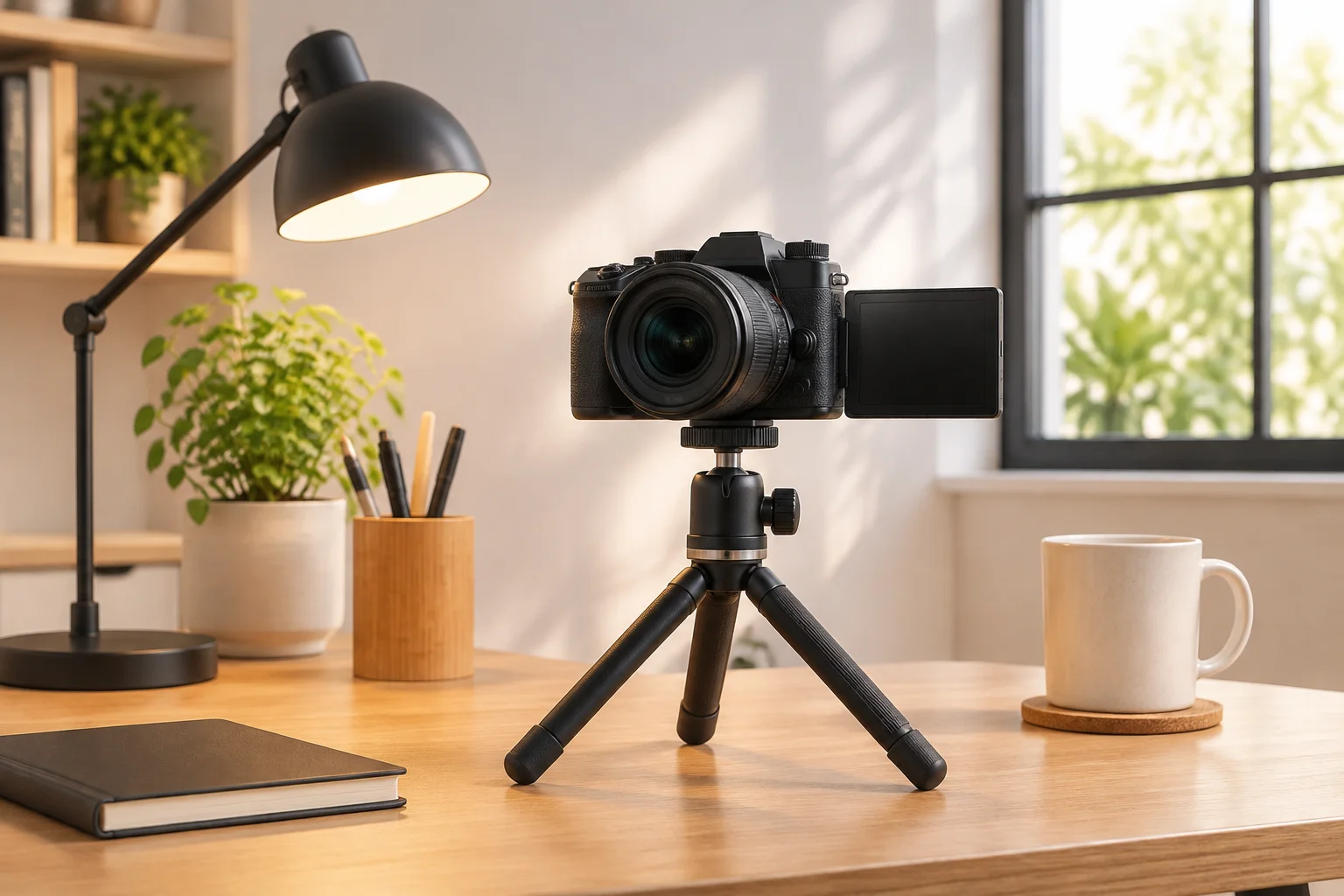
Linking an external gadget to your PC turns your workstation into a versatile production hub. Whether you mount a contemporary mobile phone on a desk arm or wire an enthusiast camera through a capture card, the physical link determines frame stability and responsiveness. Direct USB cable configurations provide the cleanest stream, avoiding the intermittent packet collisions typical of congested Wi-Fi channels. Before launching your broadcasting application, choose an appropriate USB data cable rated for high-bandwidth transmission rather than a basic charging lead. Plug the cable instantly into a motherboard rear I/O port or a powered host hub, bypassing passive front-panel splitters that may starve the hardware of sufficient current.
A dependable video transmission starts at the physical interface—solid cables and direct host ports protect your broadcast from sudden drops.
— Maya Bennett, Vidora Hardware Integration
Once the hardware handshake completes, your operating system registers the gadget through standard driver layers or specialized companion pipes. On mobile gadgets, ensure file transfer or camera tethering permissions are granted immediately upon link prompt. Check that system sleep options, background battery savers, and automatic display timeouts are disabled on the mobile unit to stop signal cutouts during calls or live broadcasts. In Vidora or your desktop video suite, refresh the capture input registry to confirm the gadget appears with its native sensor aspect ratio, sharp resolution, and matching sound sample frequency.
Tags:Gadget LinkUSB TetheringVideo Configuration